

Instagram Audio Editor Download: Safe Free Options
Instagram audio editor download guide: the safe, free editors to install, where to get them, how to spot fake apps, and how to bring your Instagram audio in.
InstaMP3Box Team8 min read
On this page▼
- Key takeaways
- What people mean by “Instagram audio editor download”
- Free audio editors worth downloading
- Audacity (Windows, macOS, Linux)
- Ocenaudio (Windows, macOS, Linux)
- GarageBand (Mac, iPad, iPhone)
- Your phone’s voice recorder
- Instagram’s own tools
- How to download an audio editor safely
- Why fake “Instagram audio editor” apps are a problem
- How to download and install Audacity
- Get your Instagram audio into the editor
- Which option should you choose?
- Mobile versus desktop: what changes
- Music, licences and what you can reuse
- Troubleshooting downloads and imports
- The short version
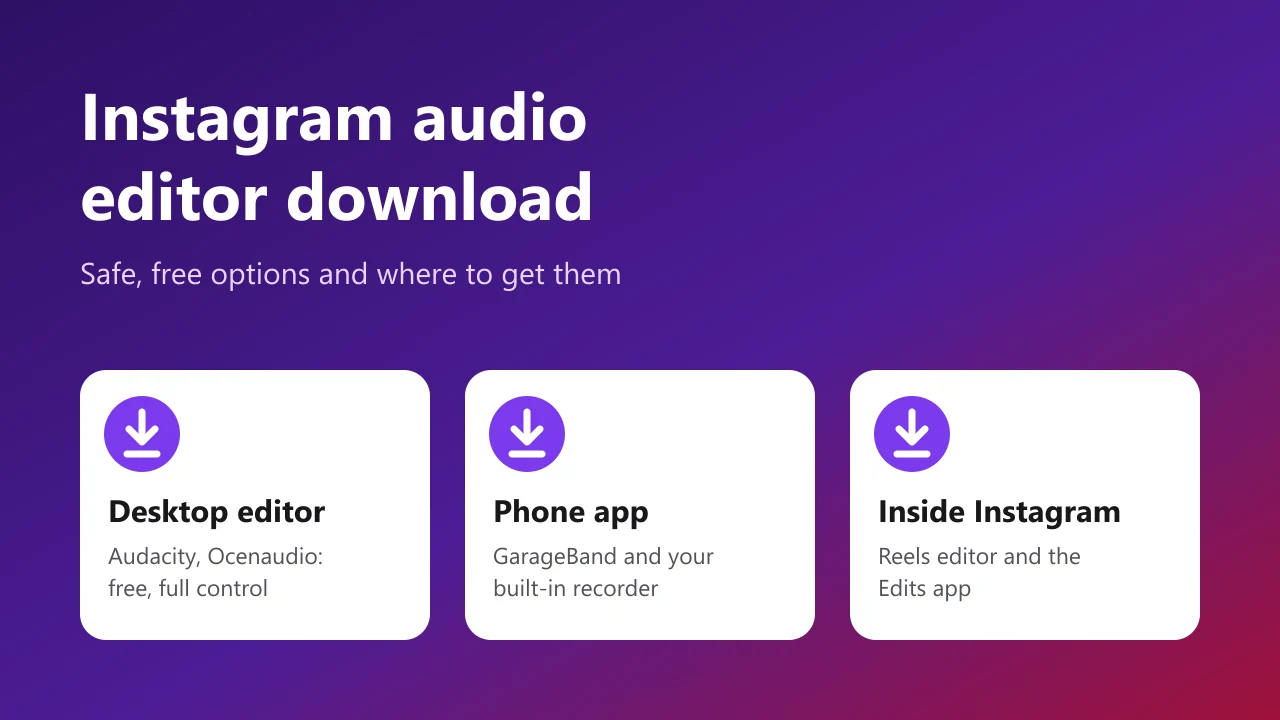
There is no standalone “Instagram audio editor” to download from Instagram. The safe way to get an Instagram audio editor download is to install a trusted free audio editor from its official site or app store, such as Audacity on a computer or GarageBand on an Apple device, or to use the editing tools already built into Instagram. Anything advertised as an “Instagram audio editor APK” or a “pro unlocked” version is a red flag.
This guide shows which editors are worth downloading, where to get each one from, a checklist for avoiding fake and unsafe downloads, how to install an editor step by step, and how to bring audio from your own Instagram posts into it. If you are looking for how to edit once you have a tool installed, our companion guide to the Instagram audio editor covers trimming, mixing and cleanup in detail.
Key takeaways
- Instagram does not ship a separate audio editor. Its editing tools live in the Reels camera and in Instagram’s separate Edits app.
- Download only from official sources: the developer’s own website or your phone’s app store.
- Free tools are good enough. Audacity and Ocenaudio on desktop, GarageBand on Apple devices, and your phone’s recorder cover most needs.
- Never share your Instagram password with an editor or a “downloader”. A real audio editor does not need it.
- Get your own audio as an MP3, then import it into the editor.
What people mean by “Instagram audio editor download”
The phrase covers four different needs, and each has a different answer:
- An app to edit audio for Reels. Use Instagram’s built-in tools, or a free editor on your phone or computer.
- Software to clean up a recording. A desktop editor with noise reduction and fades is the best fit.
- A way to download audio from Instagram to edit it. You need a converter that turns a public post into an MP3, then an editor to open it.
- A cracked or “premium” Instagram sound tool. These do not exist as official products, and downloads that claim to be one are a common route for malware.
The rest of this guide takes them in order.
Free audio editors worth downloading
Availability and features change, so confirm the current details on each download page before you install.
Audacity (Windows, macOS, Linux)
Audacity is a free, open-source editor and the safest default for most people. It handles trimming, noise reduction, fades, normalisation, multi-track mixing and export to MP3 and other formats. The interface is practical rather than pretty, but the learning curve is short.
Ocenaudio (Windows, macOS, Linux)
Ocenaudio is a free editor with a cleaner, simpler interface and real-time effect previews. It is a good choice if you want to edit single clips quickly without a multi-track project.
GarageBand (Mac, iPad, iPhone)
GarageBand is free on Apple devices and works well for recording voice and layering it with music. On iPhone it is a convenient way to record and polish a voice-over before you add it to a Reel.
Your phone’s voice recorder
The built-in recorder on iPhone and Android can trim a recording and is the quickest tool for fixing a mistake on the go. There is nothing to install.
Instagram’s own tools
Inside the Reels editor you can add music, record a voice-over and balance the volume of your original sound against the music. Instagram also offers a separate video editing app called Edits, which you would download from your phone’s official app store if you want a more complete mobile editor. As with any app, check the publisher shown in the store listing before you install.
How to download an audio editor safely
Search results for this keyword are full of look-alike sites, fake “mod” downloads and bundled installers. A few habits remove almost all the risk.
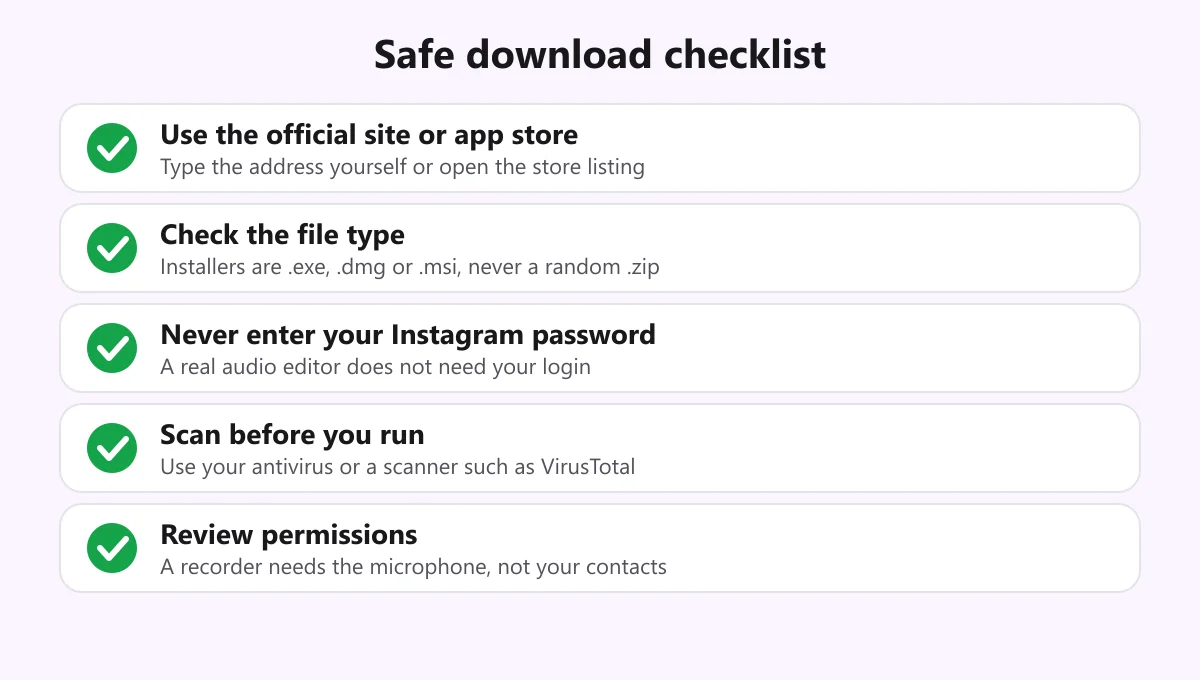
- Go to the official source. Type the developer’s address yourself, or open the listing from your phone’s app store. Be wary of ads and of sites that merely mention the editor’s name.
- Check the file type. A desktop installer ends in .exe, .msi or .dmg. A random .zip, a .scr file, or an installer for a different program is a warning sign.
- Never enter your Instagram password. Audio editors work on files, not on your account.
- Scan the file. Use your antivirus, or upload it to a scanner such as VirusTotal before you run it.
- Review permissions. A recorder needs the microphone. It does not need your contacts, SMS or location.
Also be cautious about bundled offers during installation. Decline extra toolbars, “optimisers” and browser changes, and use a custom or advanced install option when you have the choice.
Why fake “Instagram audio editor” apps are a problem
Because Instagram has no official stand-alone audio editor, any download claiming to be one deserves suspicion. Typical tricks include:
- APK files from outside the Play Store that ask for broad permissions.
- “Pro unlocked” or “mod” versions of apps, which are often repackaged with extra code.
- Sites that ask you to log in with Instagram before they let you download, which is a credential-theft pattern.
- Surveys and “human verification” steps that never end in a file.
If something promises a hidden Instagram feature that the official app does not offer, treat it as a scam until proven otherwise.
How to download and install Audacity
The exact buttons change as websites update, but the process is the same for most desktop editors.
- Open the official Audacity website in your browser.
- Choose the download for your operating system: Windows, macOS or Linux.
- Open the downloaded installer and follow the prompts. If your computer warns you about an unknown publisher, make sure you downloaded the file from the official site before continuing.
- Launch the editor and check that your microphone and speakers are selected in the device settings.
- Record a short test clip and play it back to confirm everything works.
Installing from the developer’s page, rather than a mirror or a download portal, also makes sure you get the current version with the latest security fixes.
Get your Instagram audio into the editor
Once an editor is installed, you need a file to work on. If the audio comes from your own recording, import that. If it lives in a public Reel, video or Story you made, you can save it as an MP3 first.
- Copy the link. In the Instagram app, tap the three dots on your post and choose Copy link.
- Convert it. Paste the link into the InstaMP3Box Instagram audio downloader, pick 128, 192 or 320 kbps and download. For Reels, the Reels to MP3 converter has the details. Our complete guide to the Instagram audio downloader explains how it works.
- Import into your editor. In Audacity, open the file from the File menu using the import option. MP3 files import directly. Some versions need an extra FFmpeg component to import M4A or AAC, which is the format you may receive if a backup service handled the link.
- Edit and export. Trim, clean and level the audio, then export a new MP3 or AAC file. Keep the original untouched.
Only convert content you made or have permission to reuse. The converter works on public posts and does not store your files, as described in the privacy policy. Finding out which song a Reel uses is a different task; see our guide to the Instagram Reels audio finder.
Which option should you choose?
- Quick Reel with music: use Instagram’s built-in editor. Nothing to download.
- Voice-over recorded on your phone: use the built-in recorder or GarageBand on iPhone.
- Noisy recording or interview: install Audacity or Ocenaudio and use noise reduction.
- Podcast-style or multi-track project: Audacity or GarageBand with separate tracks for voice and music.
- Short clips, no setup: a web-based editor, after checking what it does with your uploaded files.
Mobile versus desktop: what changes
On a computer you get a bigger screen, precise cutting and plug-ins, which suits cleanup and mixing. On a phone you get speed and convenience, which suits recording and quick trims. Many creators combine the two: record on the phone, send the file to a computer for cleanup, and finish the Reel in Instagram. Whichever you pick, edit a copy and keep the original.
Music, licences and what you can reuse
Downloading an editor does not change who owns a sound. Editing other people’s music or voices without permission can still infringe their rights, and Instagram’s music library is licensed only for use inside the app. For audio you can legally reuse, read our guide to a safe and legal audio download as a free MP3. Our terms of service explain how the converter may be used. This is general information, not legal advice.
Troubleshooting downloads and imports
- The installer will not open. Your operating system may be blocking an unrecognised file. Confirm that it came from the official site, and check that the file downloaded completely.
- The editor cannot import my file. MP3 normally works. For M4A or AAC, install the FFmpeg component the editor recommends, or convert the file to MP3 first.
- There is no sound when I play it back. Check the output device in the editor’s settings and your system volume.
- Exported audio sounds worse. Each lossy export loses a little quality. Edit once, export once, and use 192 or 320 kbps.
- The Instagram link will not convert. The account may be private, the post deleted or the Story expired. Only public posts can be read.
The short version
For an Instagram audio editor download, skip anything that claims to be an official Instagram audio app and install a trusted editor from its own site or your app store. Use Audacity or Ocenaudio on a computer, GarageBand or your phone’s recorder on mobile, and Instagram’s own tools for quick edits. When you need a file to work on, paste a public link you have the right to use into the converter, import the MP3, edit a copy and keep the original.
InstaMP3Box Team
The InstaMP3Box team writes guides on saving audio from Instagram — from quick how-tos to deeper explainers on bitrate and file formats.
How we write and update our guidesFollow on X (Twitter) ↗Frequently asked
Is there an official Instagram audio editor app to download?
No. Instagram has no separate audio editor. Its audio tools are inside the Reels editor, and it offers a separate video editing app called Edits. Downloads that claim to be an official Instagram audio editor should be treated with suspicion.
What is the best free audio editor to download for Instagram?
Audacity is the best free all-round choice on desktop. Ocenaudio is a simpler alternative, and GarageBand is free on Apple devices. Download each from its official site or app store.
Is it safe to download an Instagram audio editor APK?
Generally no. APK files from outside the official app store, and so-called mod or pro unlocked versions, are a common way to spread malware. Use your phone's official app store instead.
How do I get audio from Instagram into an editor?
Copy the link of a public post you own or have permission to reuse, convert it to MP3 with InstaMP3Box, then import the MP3 into your editor.
Do I need to log in to Instagram to use an audio editor?
No. An audio editor works on files and does not need your Instagram password. If a download asks you to log in with Instagram, do not continue.
Can I edit audio on my phone instead of downloading software?
Yes. Instagram's Reels editor and your phone's built-in recorder handle quick trims and volume balancing, and GarageBand on iPhone adds voice recording and layering.