

How to Download Instagram Reel Audio (All Devices)
How to download audio from an Instagram Reel on iPhone, Android and PC: four methods compared, a step-by-step MP3 guide, and fixes for links that fail.
InstaMP3Box Team9 min read
On this page▼
- Key takeaways
- Four ways to get Reel audio, compared
- Method 1: how to download audio from an Instagram Reel with a link converter
- On iPhone
- On Android
- On PC or Mac
- Which quality should you pick?
- Method 2: save the audio inside Instagram
- Method 3: extract the audio from a video file
- Method 4: screen recording (not recommended)
- What you can and cannot get from a Reel
- What to do with the MP3 afterwards
- Is it legal and safe?
- Troubleshooting: when a Reel will not convert
- The short version
To download audio from an Instagram Reel, copy the Reel’s link, paste it into an Instagram audio downloader, choose a quality and save the MP3. It works the same on iPhone, Android and a computer, needs no Instagram login, and takes about a minute for any public Reel. Instagram itself only lets you save a sound inside the app, not as a file on your device.
This guide covers the fastest method step by step on each device, compares the other ways people try (saving in the app, extracting from a video file, screen recording), and explains what you can and cannot get, what quality to expect and what to do when a Reel will not convert. It is a pillar guide; follow the links for more detail on any step.
Key takeaways
- The quickest route is a link converter. Copy the Reel link, paste it, pick 128, 192 or 320 kbps and download an MP3.
- “Save audio” in Instagram does not give you a file. It bookmarks the sound for use in your own Reels.
- You get the Reel’s mixed soundtrack, not the separate original song file.
- Public Reels only. Private accounts and deleted posts cannot be read.
- You still need permission to reuse the audio. A download is not a licence.
Four ways to get Reel audio, compared
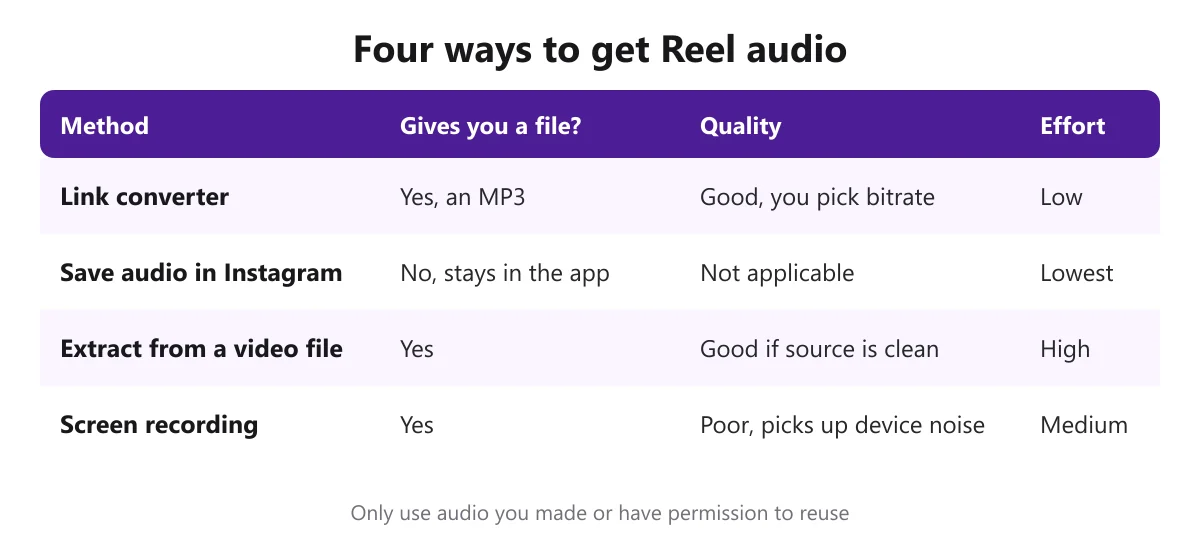
There are four common approaches. In order of how well they work:
- Link converter. Paste the Reel’s URL into a web tool that extracts the audio and encodes it as MP3. Fast, works on every device, and you choose the bitrate.
- Save audio inside Instagram. Bookmarks the sound for reuse in the app. Useful, but it is not a download.
- Extract from a video file. If you already have the video, desktop software can pull out the audio track. More steps, and you need the video first.
- Screen recording. Records everything the device plays, including notification sounds. The lowest-quality option and best avoided.
Method 1: how to download audio from an Instagram Reel with a link converter
This is the method most people want. The steps are almost identical on every device; the differences are in copying the link and finding the saved file.
On iPhone
- Open the Reel in the Instagram app, tap the paper-plane or three-dot menu and choose Copy link.
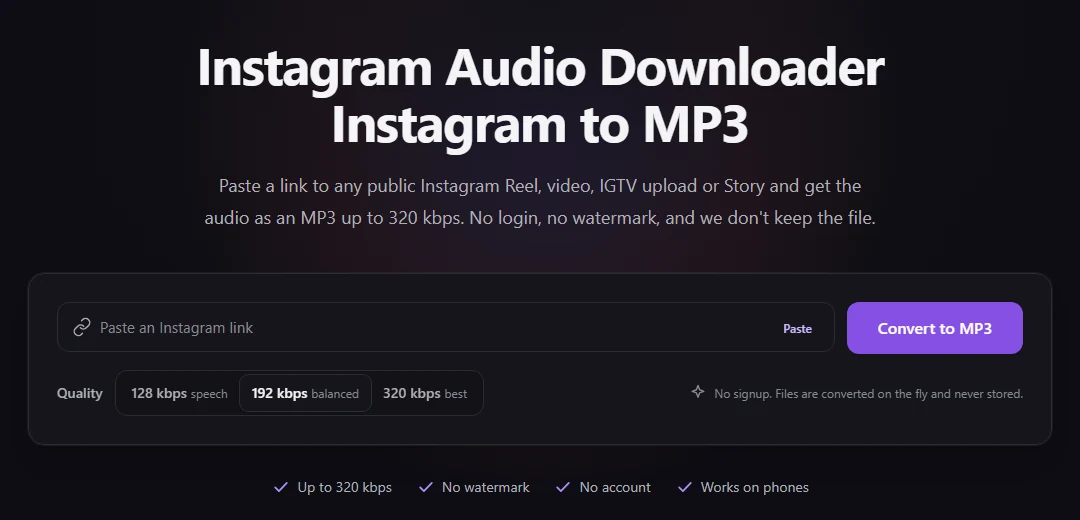
- Open Safari and go to the Instagram audio downloader. Paste the link and pick a bitrate.
- Tap convert, check the title and duration, then tap download.
- When Safari asks, confirm the download. Open the Files app and look in your Downloads folder to find the MP3.
From Files you can share the file to GarageBand, a voice-memo app, a messaging app or cloud storage.
On Android
- In the Instagram app, tap the three dots on the Reel and choose Copy link (or use the share menu).
- Open Chrome and go to the converter. Paste the link and choose a quality.
- Tap convert, then download.
- The MP3 is saved in your Downloads folder and appears in your file manager and music player.
On PC or Mac
- Open the Reel in your browser and copy the address from the address bar.
- Open the converter in a new tab, paste the link and select 128, 192 or 320 kbps.
- Click convert, then download. The MP3 goes to your normal downloads folder.
For a Reel-specific version of these steps see the Reels to MP3 converter page. Nothing is installed, no Instagram account is involved, and the audio is encoded as it streams and is not stored on our server.
Which quality should you pick?
- 128 kbps is about 1 MB per minute. Best for voice-overs, interviews and talking Reels.
- 192 kbps is about 1.4 MB per minute. A balanced default for music and mixed audio.
- 320 kbps is about 2.4 MB per minute. Choose it if you will edit the audio again.
Instagram compresses audio when a Reel is uploaded, so a higher setting preserves what is there but cannot add detail that was already removed. Use the MP3 file size calculator to estimate the size of a clip at any bitrate.
Method 2: save the audio inside Instagram
If you only want to reuse a sound in your own Reel, you do not need a file.
- Open the Reel and tap the audio name at the bottom-left to open the sound’s page.
- Choose the option to save the audio. It is added to your saved list.
- When you create a Reel, open the audio picker and look in your saved sounds.
This keeps the audio inside Instagram’s licensing, which is why you cannot export it as a file. Our guides to the Instagram audio finder and the Instagram Reels audio finder explain how to search, save and identify sounds in the app. Menu names change between versions, so look for the music-note icon.
Method 3: extract the audio from a video file
If you already have the Reel as a video file that you made or have permission to use, free software can extract the audio. In VLC, for example, you can open Media and choose Convert / Save, add the video, pick an audio profile such as MP3, set a destination file and start. The VLC media player is free for Windows, macOS and Linux. Audio editors such as Audacity can also open some video files, although certain versions need an extra FFmpeg component to do so.
The drawback is obvious: you need the video first, which is the harder part of the job. For most people a link converter is simpler. If you want to polish the result afterwards, see our guide to the Instagram audio editor.
Method 4: screen recording (not recommended)
Screen recording captures everything the device plays, so notification chimes, system sounds and other apps can end up in the file. Some phones record only the microphone unless you change settings, which makes the result quiet and noisy. If you must use it, switch on do-not-disturb, turn off other sounds and expect lower quality than any converter.
What you can and cannot get from a Reel
- You get the Reel’s single mixed audio track: voice, music and effects together.
- You do not get the original song as a separate studio file. A Reel only contains the soundtrack as it was mixed.
- You do not get audio from private accounts, deleted posts or expired Stories. For live Stories, see the Story audio downloader.
- You do not get a Reel’s visual overlays in an MP3, because audio has no picture. Our guide to an Instagram audio downloader without watermark explains why.
What to do with the MP3 afterwards
Once the file is on your device, a few practical steps make it easier to use and keep.
- Rename it. Reel titles are often long or generic. A name like
creator-topic-date.mp3keeps your downloads folder searchable. - Back it up. Copy important audio to cloud storage or a computer, because phones fill up and Reels can be deleted by their creators.
- Transcribe it. Speech-to-text tools work faster and more cheaply on audio than on video, which is useful for captions, notes and repurposing your own spoken Reels.
- Edit a copy. Trim silence, balance volume and add fades in an audio editor, and keep the untouched original. Our guide to the Instagram audio editor covers a simple workflow.
- Check licences before you publish. If the Reel uses someone else’s music or voice, you need permission to reuse it. For audio you can legally use, read our guide to a safe and legal audio download as a free MP3.
A few habits improve results every time: use the original Reel link rather than a screenshot or a repost, convert on a stable connection, and choose 128 kbps when you only need speech so the file stays small.
Is it legal and safe?
Saving audio you made yourself, or content you have written permission to reuse, is generally fine. Reposting someone else’s sound as your own, or using commercial music in monetised content without a licence, is not, whether or not you used a downloader. Instagram’s own terms also restrict automated collection of content. Our terms of service describe permitted use, and this is general information, not legal advice.
For safety, never give a downloader your Instagram password, do not install extensions or apps that a converter pushes you to install, and check that the file you receive is an .mp3 of a sensible size. Our privacy policy explains what the converter collects. For a broader checklist read our complete guide to the Instagram audio downloader.
Troubleshooting: when a Reel will not convert
- “Private or unavailable.” The account is private or the Reel was deleted. Open the link in a private browsing window; if you cannot see it logged out, neither can a downloader.
- “Invalid link.” You copied a profile or a highlight. Open the exact Reel and copy its link again.
- “No audio track.” Some Reels are silent, and the converter says so rather than producing an empty file.
- The download starts but you cannot find it. On iPhone check Files > Downloads; on Android check the Downloads folder; on a computer check your browser’s downloads list.
- You received an M4A, not an MP3. A backup service handled the link. M4A plays on almost every device and any audio editor can convert it to MP3.
- The service says it is busy. Requests are rate limited per network. Wait a minute and try again.
The more general link-based version of these fixes is in our guide to audio download by link.
The short version
To get a Reel’s audio as a file, copy its link and paste it into a converter; use Instagram’s own Save audio only when you want to reuse the sound in the app. Pick 128 kbps for speech and 192 or 320 kbps for music, stick to public Reels you have the right to use, and keep the original file when you edit. Ready to try it? Paste your Reel link into the converter.
InstaMP3Box Team
The InstaMP3Box team writes guides on saving audio from Instagram — from quick how-tos to deeper explainers on bitrate and file formats.
How we write and update our guidesFollow on X (Twitter) ↗Frequently asked
How do I download audio from an Instagram Reel?
Copy the Reel's link from the share or three-dot menu, paste it into an Instagram audio downloader such as InstaMP3Box, choose 128, 192 or 320 kbps and download the MP3. No Instagram login is needed.
Can I download Reel audio on iPhone?
Yes. Copy the link in the Instagram app, open the converter in Safari, paste the link and download. The MP3 is saved to the Files app, usually in Downloads.
Can I download Reel audio on Android?
Yes. Copy the Reel link, open the converter in Chrome, paste it and download. The MP3 goes to your Downloads folder.
What does Save audio on Instagram do?
It bookmarks the sound inside Instagram so you can use it in your own Reels. It does not create a file on your device.
Can I get the original song from a Reel?
No. You get the Reel's mixed soundtrack as one audio track. The separate original song file is not available from the public video.
Is it legal to download audio from an Instagram Reel?
Saving your own audio or content you have permission to use is generally fine. Reusing someone else's audio without a licence can infringe copyright. This is general information, not legal advice.