

Instagram Audio Finder: Search and Save Sounds
Instagram audio finder guide: how to search, browse and save sounds in the app, find trending audio, and what to do when a sound is missing or restricted.
InstaMP3Box Team9 min read
On this page▼
- Key takeaways
- Three jobs, one phrase
- How to find audio when you create a Reel
- Browse by category
- How to save audio so you can find it again
- Find original audio from a specific creator
- Find audio for Stories, posts and other formats
- Finding audio on a business or creator account
- Find audio outside the app
- Keep a copy of your own audio
- How to choose a sound that fits your Reel
- Why a sound might be missing or restricted
- Common problems and quick fixes
- Reuse, rights and good practice
- The short version
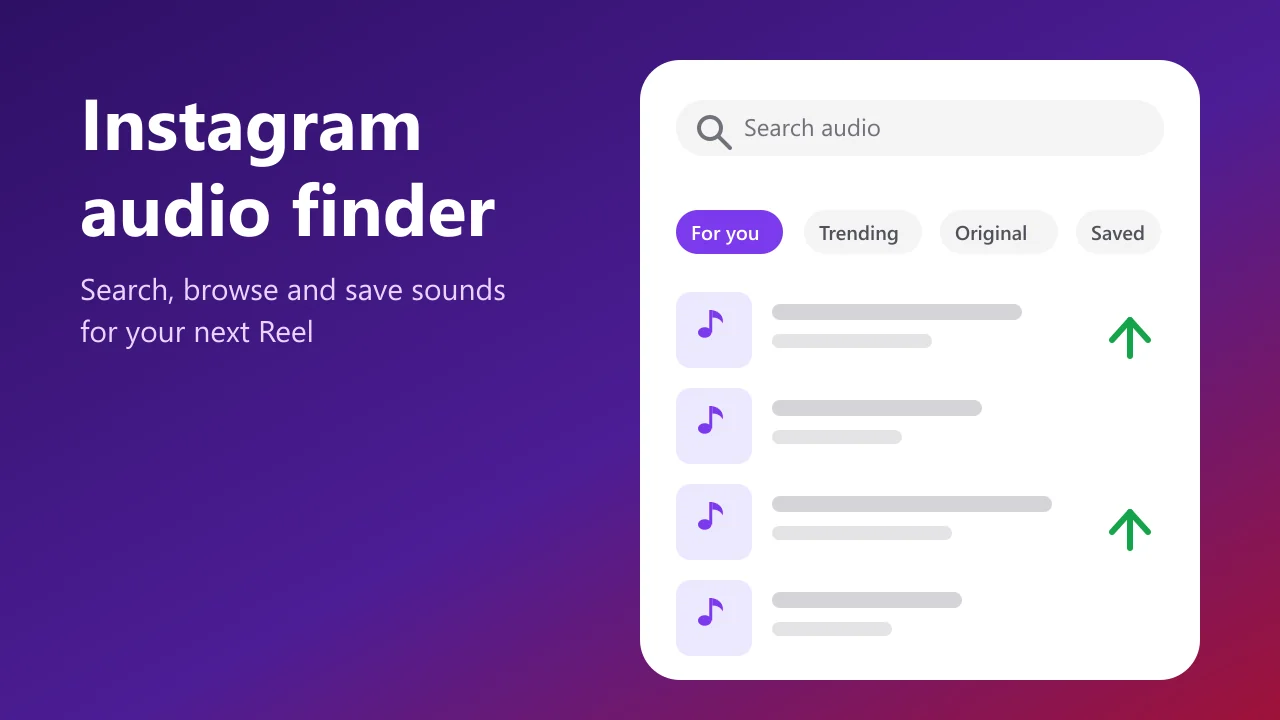
An Instagram audio finder is the built-in audio picker you reach from the music-note icon when you make a Reel or Story: it lets you search by song or artist, browse trending and original sounds, and save the ones you like for later. Outside the app, a few extra tricks help when a sound is hard to find, restricted on your account, or something you only heard in someone else’s video.
This guide covers the three jobs people mean by “audio finder”: discovering sounds to use, identifying a sound you heard, and keeping a sound so you can find it again. It focuses on discovery and saving. If you are trying to name a song you heard in a Reel, our companion guide to the Instagram Reels audio finder covers identification in depth. Menus and labels in Instagram change over time, so the wording on your screen may differ slightly.
Key takeaways
- The audio picker is your main finder. Open it with the music-note or audio icon in the Reels or Stories editor.
- Search, then browse. Type a song, artist or mood, or switch tabs such as trending, original audio and saved.
- Save sounds as you find them. Saved audio is much easier to locate than a sound you saw once.
- Your account type affects the library. Business accounts may see fewer commercial tracks than personal accounts.
- Finding a sound is not the same as owning it. Reuse rules still apply outside the app.
Three jobs, one phrase
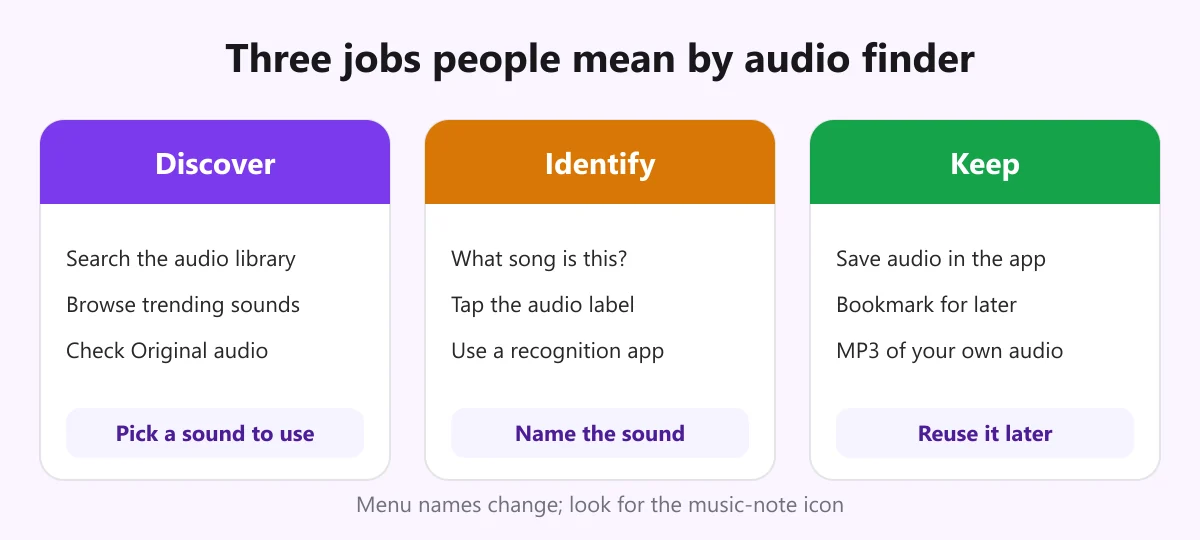
The phrase covers different needs, and knowing which one you have saves time.
- Discover. You want to find a sound to use in your own Reel or Story. This is what the audio picker is for.
- Identify. You heard something in a video and want to know what it is. Start with the audio label on that Reel.
- Keep. You found a sound and want to find it again next week, or keep a copy of your own audio.
How to find audio when you create a Reel
This is the fastest route and the one most creators use every day.
- Open the Reels camera and tap the audio option, usually shown as a music note.
- Use the search bar at the top to type a song title, artist name or a mood or genre.
- Preview a result by tapping it, then confirm to attach it to your Reel.
- Use the controls that appear to choose which part of the song plays, so your clip starts on the chorus or the beat you want.
If search returns nothing, check the spelling, try the artist name alone, or search for a distinctive lyric. Some tracks are unavailable in certain countries or are not licensed for use in Reels, so a missing song is not always a typo.
Browse by category
When you do not have a specific song in mind, browsing is often better than searching. Depending on your app version, the audio picker offers tabs or sections such as:
- For you: a personalised mix based on what you and similar accounts use.
- Trending: sounds that are rising quickly. These are often marked with a small arrow icon, which signals that a sound is currently taking off.
- Original audio: sounds recorded by other creators, including voice-overs, ambient noise and music they made.
- Saved: sounds you have bookmarked.
Trending sounds help your Reel feel current, but they are also crowded. A less popular sound that fits your content can be a better choice than one that thousands of accounts are already using.
How to save audio so you can find it again
Saving takes ten seconds and removes most of the later hunting.
- Open any Reel that uses a sound you like.
- Tap the audio label at the bottom of the Reel to open that sound’s page.
- Choose the option to save the audio. It is added to your saved list.
- Next time you make a Reel, open the audio picker and look for the saved tab.
The audio page also shows the other Reels that use the sound, which is useful for judging how it is being used before you commit to it. If you later cannot see a saved sound, it may have been removed or restricted, which happens when the creator deletes their video or the rights holder withdraws a track.
Find original audio from a specific creator
Original audio is anything a creator recorded or uploaded themselves. To find it:
- Start from a Reel you like and tap the audio label. If it says Original audio and an account name, you are on the right page.
- Check the creator’s other Reels. Signature sounds often reappear across a profile.
- Use the oldest Reels on the audio page. The earliest one is usually the source.
- Ask for permission. If you plan to feature someone’s voice or music, message them first, especially for anything commercial.
Find audio for Stories, posts and other formats
Reels is not the only place sound works. In Stories, add the music sticker and search the same library. For posts, music options appear when you add audio to a photo carousel. The library, search and saved items behave consistently across these formats, although the available length of the clip differs, so check the limits in the editor.
Finding audio on a business or creator account
The music available to you can depend on your account type. Personal accounts typically see the largest commercial music library. Business accounts have often been limited to a smaller set of royalty-free or specially cleared sounds, because commercial use needs a different licence. Meta also publishes a free library of music and sound effects for creators and businesses, which you can check for sounds cleared for broader use. If a trending track disappears when you switch account type, this is almost always the reason.
For a deeper look at free and royalty-free sources outside Instagram, read our guide to a safe and legal audio download as a free MP3. The term is explained in this overview of royalty-free licensing.
Find audio outside the app
When the app does not give you an answer, a little detective work often does.
- Search the web for the Reel’s caption plus the words “song” or “audio”. Fan pages and comment sections frequently name tracks.
- Search lyrics. Even a few words typed with the word lyrics often returns the song.
- Hum or sing the melody into a search tool that supports it.
- Use a recognition app while the Reel plays. These match short clips against a database of recordings.
All of these are covered step by step in the Instagram Reels audio finder guide.
Keep a copy of your own audio
If a sound is your own voice-over, music or recording, you may want a file you control, rather than only a bookmark inside the app. Copy the link of your public Reel, paste it into the InstaMP3Box Instagram audio downloader, choose 128, 192 or 320 kbps and download an MP3. See the Reels to MP3 converter for details, and our complete guide to the Instagram audio downloader for how the process works. Once you have a file, you can tidy it in an audio editor; our guide to the Instagram audio editor covers the basics.
Only do this for audio you made or have permission to reuse. A saved bookmark and a downloaded file are very different things: the first stays inside Instagram’s licensing, the second is yours to manage, and you are responsible for how you use it.
How to choose a sound that fits your Reel
Finding a sound is easy; picking the right one takes a little judgement. A few rules of thumb help:
- Match the energy. Fast cuts suit a driving beat, while a calm tutorial works better with soft, instrumental music.
- Protect your voice. If you talk in the Reel, choose music without lyrics, or keep it well below your voice in the mixer.
- Preview with sound on. Play the section you will actually use, not just the intro.
- Check the length. Make sure the part you want fits the Reel and ends cleanly.
- Think about reuse. A saved sound that fits your niche is worth more than a one-off trending track.
Why a sound might be missing or restricted
- Regional availability. Licences differ by country, so a sound visible in one place may not appear in another.
- Account type. Business accounts see a more limited library.
- The creator deleted it. If an original audio post is removed, the sound can disappear for everyone who used it.
- The rights holder withdrew it. Licensed tracks can be pulled at any time.
- An app version issue. Updating Instagram or restarting the app sometimes restores missing tabs and search results.
Common problems and quick fixes
- Search shows no results. Try fewer words, the artist alone, or a lyric. Check your connection and update the app.
- The audio tab or option is greyed out. The sound is restricted for your account or region. Choose an alternative.
- I cannot find a sound I saw yesterday. Go back to the Reel in your activity history, tap the audio label and save it this time.
- The sound plays too quietly or too loudly. Use the volume mixer in the editor to balance it with your voice.
- A link will not convert to MP3. The account may be private, the post deleted or the Story expired. Only public posts can be read.
Reuse, rights and good practice
Inside the app, Instagram handles licensing for music in its library. Outside the app, nothing about finding or saving a sound gives you rights to it. Do not reuse other people’s music or voices commercially without permission, and credit original audio creators when you feature their work. Our terms of service explain how the converter may be used, and rights holders can reach us through the contact page. This is general information, not legal advice.
The short version
To find audio on Instagram, open the audio picker from the music-note icon, search or browse the trending, original and saved tabs, and bookmark anything you like. Use the audio label on a Reel to trace where a sound comes from, check your account type if sounds are missing, and keep your own audio as an MP3 when you want a copy you control. When you are ready, paste a public link you have the right to use into the converter.
InstaMP3Box Team
The InstaMP3Box team writes guides on saving audio from Instagram — from quick how-tos to deeper explainers on bitrate and file formats.
How we write and update our guidesFollow on X (Twitter) ↗Frequently asked
How do I find audio on Instagram?
Open the Reels or Stories editor, tap the audio or music-note icon, then search by song, artist or mood, or browse tabs such as trending, original audio and saved.
How do I find trending audio on Instagram?
In the audio picker, look for the trending section. Rising sounds are often marked with a small arrow icon. Trending sounds change quickly, so check again before you post.
How do I save audio on Instagram?
Open a Reel, tap the audio label at the bottom to reach the sound's page, and choose the save option. It then appears in the saved tab of the audio picker.
Why can't I find a song in the Instagram audio library?
It may be unavailable in your region, not licensed for Reels, restricted on business accounts, or removed by the rights holder or creator. Try searching the artist or a lyric, or choose a similar sound.
What is the difference between an audio finder and an audio downloader?
A finder helps you discover, identify and save sounds inside Instagram. A downloader, such as InstaMP3Box, converts a public post into an MP3 file you can keep, for audio you own or have permission to reuse.
Can I use any audio I find on Instagram outside the app?
No. Finding or saving a sound does not give you rights to it. Instagram's music licences apply inside the app, and you need permission or a licence to reuse audio elsewhere. This is general information, not legal advice.